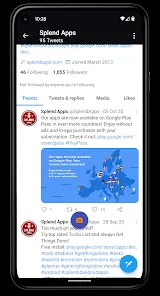
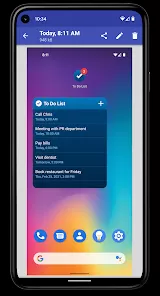
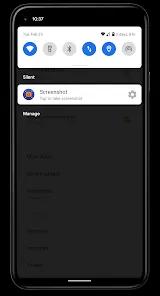
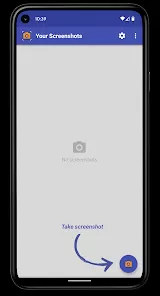
We've all experienced that moment when we need to quickly capture what's on our screen—whether it's an important receipt, a funny conversation, a software bug, or instructions we want to save for later. This everyday digital need is exactly what screenshot functionality addresses, serving as your instant digital camera for anything appearing on your device's display. Think of it as having a photographic memory for your digital life, allowing you to preserve moments, information, and visual content with a simple button combination or gesture. It's not just a technical feature; it's your quickest way to capture and share what you're seeing, making digital communication more visual and information more permanent.
Features That Make Screen Capture Effortless
- Full-Screen Capture: Instantly save everything visible on your display with a single keyboard shortcut or button combination
- Selective Area Screenshot: Choose specific portions of your screen to capture, perfect for focusing on relevant content
- Built-in Editing Tools: Annotate, crop, highlight, or blur sensitive information immediately after capturing your screenshot
- Scrolling Capture Capability: Capture entire webpages or documents that extend beyond your visible screen area
- Instant Sharing Options: Quickly share your screenshots through messaging apps, email, or social media directly from the capture interface
Who Is Screenshot Functionality Perfect For?
- Technical support professionals: documenting software issues and creating visual guides for troubleshooting
- Content creators and social media managers: capturing inspiration, creating quick visuals, or sharing app features
- Students and researchers: saving online resources, capturing data, or documenting research findings
- Remote workers and collaborators: quickly sharing visual information during virtual meetings and communications
- Everyday device users: preserving important information, saving receipts, or capturing memorable digital moments
Why Screenshot Capabilities Stand Out
- Universal Accessibility: Built into virtually all modern devices without requiring additional software or apps
- Instantaneous Operation: Captures exactly what you're seeing in the moment without delay or setup time
- Platform Consistency: Similar functionality across different operating systems makes the skill transferable between devices
- No Internet Required: Works completely offline, making it reliable regardless of connectivity situation
- Continuous Improvement: Operating systems regularly enhance screenshot tools with new features and capabilities
How to Use Screenshot Functions
- Click the button "Check All Versions" below to download and install Screenshot on your device or browser.
- Learn Your Device's Shortcuts: Master the specific keyboard combinations or gestures for your computer, phone, or tablet
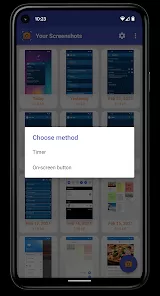
- Practice Different Capture Modes: Experiment with full-screen, selective area, and timed screenshot options
- Explore Built-in Editing Features: Learn to use annotation tools, cropping, and markup options available immediately after capture
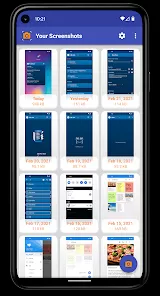
- Organize Your Screenshots: Establish a filing system for your captured images so you can find them when needed
- Develop Efficient Workflows: Create habits for quickly capturing, editing, and sharing screenshots in your daily digital activities


 0
0